Variation Order Template Excel: Build a Safer Workflow
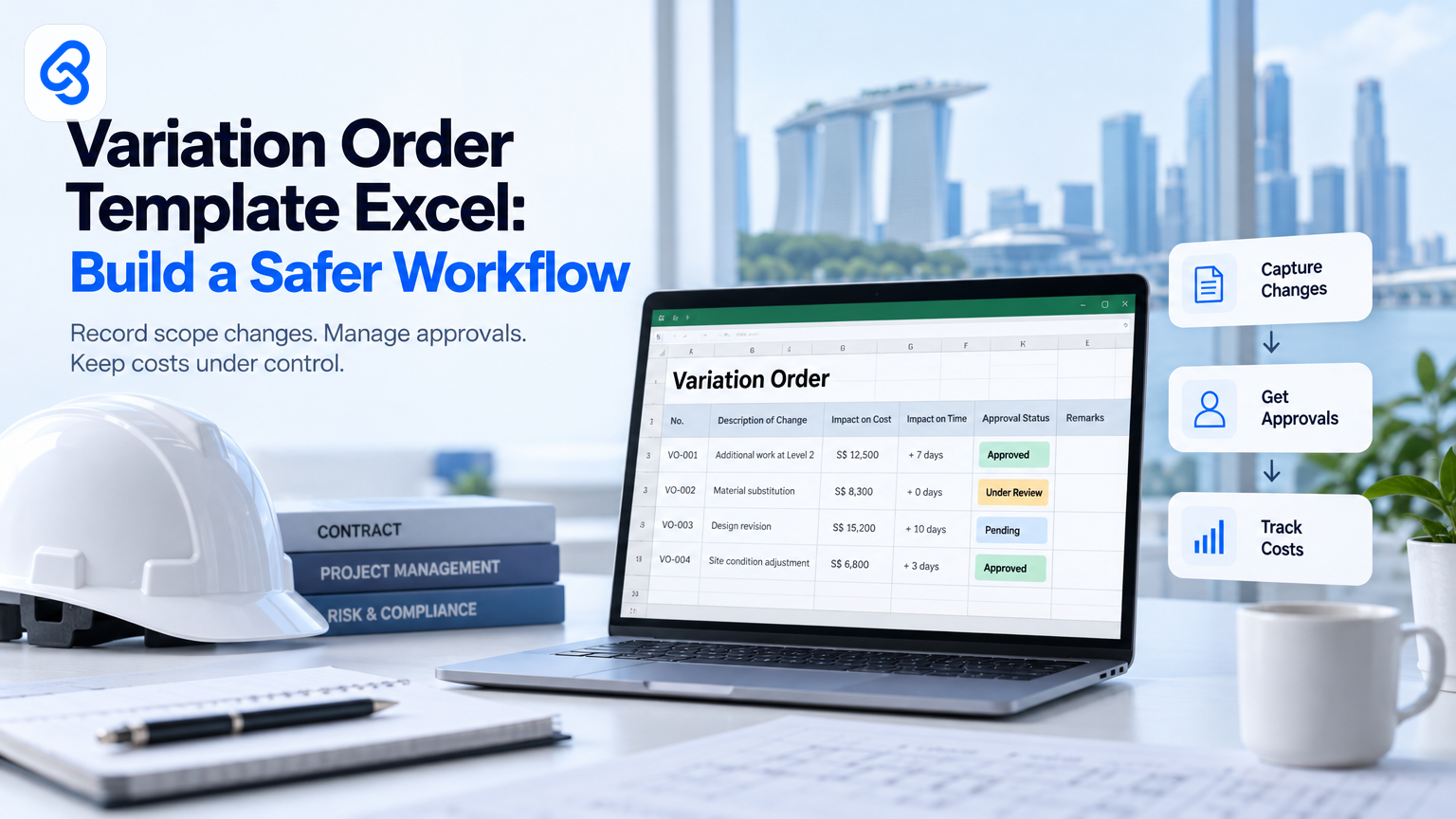
A variation order can start with a site conversation, a WhatsApp message or a client's revised drawing. If the details stay scattered, your team may struggle to confirm what changed, who approved it and whether the work can be billed. A variation order template Excel gives your team one place to record the change. The next step is making sure the process around the spreadsheet works too.
For a Singapore SME, that process is a useful small test of digital readiness. It shows where staff make judgement calls, where records need protection and where software might reduce repetitive admin without removing human approval.
What should a variation order template Excel include?
A useful variation order template Excel should capture the original job, the requested change, its cost and time impact, the approval record and the next billing step. Each field should help someone make a decision or prove what happened. If the team cannot explain why a field matters, simplify it or remove it.
Start with the job details: project name, client, site address, contract or quotation reference, and the variation order number. Use a consistent numbering method so staff can find the record later.
Then record the change itself:
- Request: Who asked for the change, and when?
- Scope: What work, material or quantity will change?
- Reason: Why does the client want the change?
- Price: What will the change add or deduct, and how did the team calculate it?
- Schedule: Will the change affect the project timeline?
- Evidence: Which drawing, photo, message or other document supports the request?
- Approval: Who can approve it, when did they approve it, and what evidence records that approval?
- Status: Is it a draft, awaiting approval, approved, declined, completed or ready to bill?
Keep requested, approved and actual costs distinct. If you replace the original figure each time, you lose the history. A separate change log can show who changed a field and when, especially if several staff share the workbook.
The free variation order template in Excel can give a team a starting point. Before using any spreadsheet, decide who owns it, who can edit it, how the team names files and where it stores signed approvals.
How do you use the template without losing approval control?
Treat the spreadsheet as a record of a decision, not as the decision itself. A staff member can prepare the variation, but someone with the right authority should approve the price and scope before the team treats the work as authorised. Keep the approval evidence with the record and make the status clear.
A practical sequence looks like this:
1. Log the request. Give it a unique reference and record who raised it.
2. Clarify the scope. Describe the work in terms the client and delivery team can check.
3. Calculate the impact. Show the cost basis and any schedule effect. Flag assumptions rather than hiding them in a total.
4. Send for approval. Share a client-ready version and ask for a clear decision.
5. Record the outcome. Save the approval, rejection or requested revision with its date.
6. Release the work. Tell the site or delivery team which approved scope to follow.
7. Close the loop. Link the completed work to the relevant invoice or progress claim.
Set a simple rule: work does not move to "approved" because someone discussed it verbally or changed a cell. If the client gives approval through another channel, record what they approved, when they approved it and where the supporting evidence sits. When the team cannot confirm approval, keep the change on hold and ask for clarification.
For more detail on the process from scope change to signed approval and billing, see this guide to a variation order workflow for Singapore SMEs. Teams that also manage progress claims can compare their records with the progress claim template workflow guide.
How can a Singapore SME make the workflow AI-ready?
An AI-ready variation order process starts with clear inputs and accountable decisions. Staff need consistent fields, a known approval route and records they can find. Those basics help a business assess whether AI can support tasks such as summarising a request or checking for missing information, while people keep control of commitments and approvals.
Before choosing a tool, map the work as it happens today. Ask staff where requests arrive, who interprets them, how they price the change and what they do when information is missing. This is the Assess step: understand the real workflow before changing it.
Then set the controls. Decide which data the team may enter, who can access records, how long to keep them and who checks an AI-generated summary. If a variation includes a customer's personal data, consider the business's data protection responsibilities and consult the PDPC's overview of the Personal Data Protection Act. Do not assume that a convenient AI feature can safely handle every customer or project record.
A useful operating sequence is Assess, Govern, Enable, Build, Operate:
- Assess: Map the current variation process and its repeated admin.
- Govern: Set access, review, approval and data handling rules.
- Enable: Show staff what the system can and cannot decide, and where they must review its output.
- Build: Add technology around an agreed workflow, rather than asking staff to work around a new tool.
- Operate: Check errors, exceptions and staff feedback after launch.
Singapore businesses can also check IMDA's SMEs Go Digital programme for official information on digital solutions and support. The Industry Digital Plans provide sector-specific digital guidance. If you consider funding, check current grant details, eligibility and conditions against official channels before making a decision.
How this actually runs: a variation request on Tuesday morning
Here is an illustrative workflow for a renovation SME using Google Sheets and Google Apps Script. A site supervisor submits a change request; an office coordinator checks it; an authorised manager reviews the price; the client approves; then the team releases the work. The spreadsheet tracks the record, but it does not approve the change or make a contract decision.
1. The request arrives. At 9:10 am, a supervisor reports that the client wants a different kitchen cabinet finish. The trigger is a submitted request form linked to the job. The form hands the project reference, requested change, date and supporting photo to a Google Sheet.
2. The office checks the record. The new row starts in "Needs review." A Google Apps Script can respond to a spreadsheet event, such as a form submission, and apply an agreed check. For example, it can flag a missing project reference or blank scope field. The Google Apps Script overview describes the service's connection with Google products and its event-driven capabilities. The script hands a complete record, or a flagged record, to the coordinator for review.
3. The coordinator confirms what the client wants. The trigger is a complete or flagged row. The coordinator checks the photo, asks the supervisor to clarify any ambiguity and enters the proposed cost basis and schedule impact. The sheet hands a reviewed change to the manager. If the client's words do not clearly define the scope, the coordinator asks for clarification instead of asking AI to guess.
4. The manager makes the commercial decision. The trigger is a reviewed change with its price and impact recorded. The manager checks the figures and decides whether to send it to the client. The manager's decision and date go into the approval fields. The sheet hands an authorised client copy to the person who sends it.
5. The team records the client's answer. The trigger is the client's reply. The coordinator saves the written approval or rejection with the variation record and updates its status. Only an authorised approval moves the record to "Approved." The approved scope then goes to the delivery team, and the billing reference goes to the person preparing the invoice or claim.
What breaks in practice? A supervisor may submit a vague description, someone may edit the wrong row, a client may approve only part of the price, or a script may fail. Keep a named person responsible for checking exceptions. Protect formula and status fields from casual edits, retain the original request, and let a human resolve partial approvals. If an automated check fails, the record should stay visible for manual review, not disappear from the workflow.
This example describes a possible workflow using documented Google tools. It does not mean every renovation firm needs Apps Script. A shared spreadsheet may be enough when the process is small and staff can maintain it. Consider a more structured system when access, audit history or handoffs no longer fit the spreadsheet.
When should you move beyond Excel?
Move beyond Excel when the process depends on controls the workbook cannot reliably support, not simply because a newer tool exists. Signs include staff creating duplicate records, approval evidence going missing, unclear edit rights, repeated manual copying or managers being unable to tell which variations still need action.
Before replacing the workbook, identify the problem you need to solve. A shared database, a form connected to a workflow or a custom application may help with different problems. Choose based on how your staff work and what the business needs to protect.
Use this short decision check:
- Can staff find the current record without asking around?
- Can you tell who requested, edited and approved a change?
- Can a reviewer see the latest scope, cost and supporting evidence together?
- Can the team stop unapproved work from being treated as approved?
- Can you handle missing information and system errors without losing the request?
- Can staff correct an AI-generated summary before it reaches a client or changes a project record?
If you answer "no" to several questions, map the process and its risks before buying software. For a sector-specific starting point, see Lynqra's templates for Singapore ID and renovation firms. If your team wants to explore a more connected quotation and variation process, read about quotation and variation order automation for renovation firms.
Frequently asked questions
Can I use an Excel variation order template for a small renovation job?
Yes. Excel can work for a small job when staff share one controlled workbook, use consistent variation numbers and store approval evidence with the record. Name one person to maintain the file. If several copies circulate or staff cannot tell which version holds the latest approval, fix the sharing process before adding more features.
Should a client sign every variation order?
Your contract and agreed process determine what approval the work requires. As a practical control, record the client's approval in a form the parties can later verify, and make sure it covers the actual scope and price. If a reply approves only part of the change, record that limit and ask for confirmation before treating the full variation as authorised.
Can AI prepare or approve a variation order?
AI may help a team organise a request, summarise details or flag missing fields, but staff should review the output. Do not let an AI-generated summary change a price, commit the business to extra work or mark a variation approved without the required human decision. Set access and data handling rules before staff put customer information into an AI tool.
What should I do when a change comes through WhatsApp or a site conversation?
Create a variation record as soon as practical and note who raised the request, when it arrived and what they asked for. Ask the client or authorised person to confirm the final scope and price in a recordable form. Keep the original message or a suitable reference with the variation so the team can trace how it started.
How can I discuss AI readiness for this workflow?
Start with the people who handle requests, pricing, approvals and billing. Map their current handoffs, the information they use and the errors they need to prevent. Then discuss which parts need a human decision and where software might help. Start an AI readiness conversation with Lynqra or email mark@lynqra.com.