Progress Claim Template Construction Excel: Safer Workflows
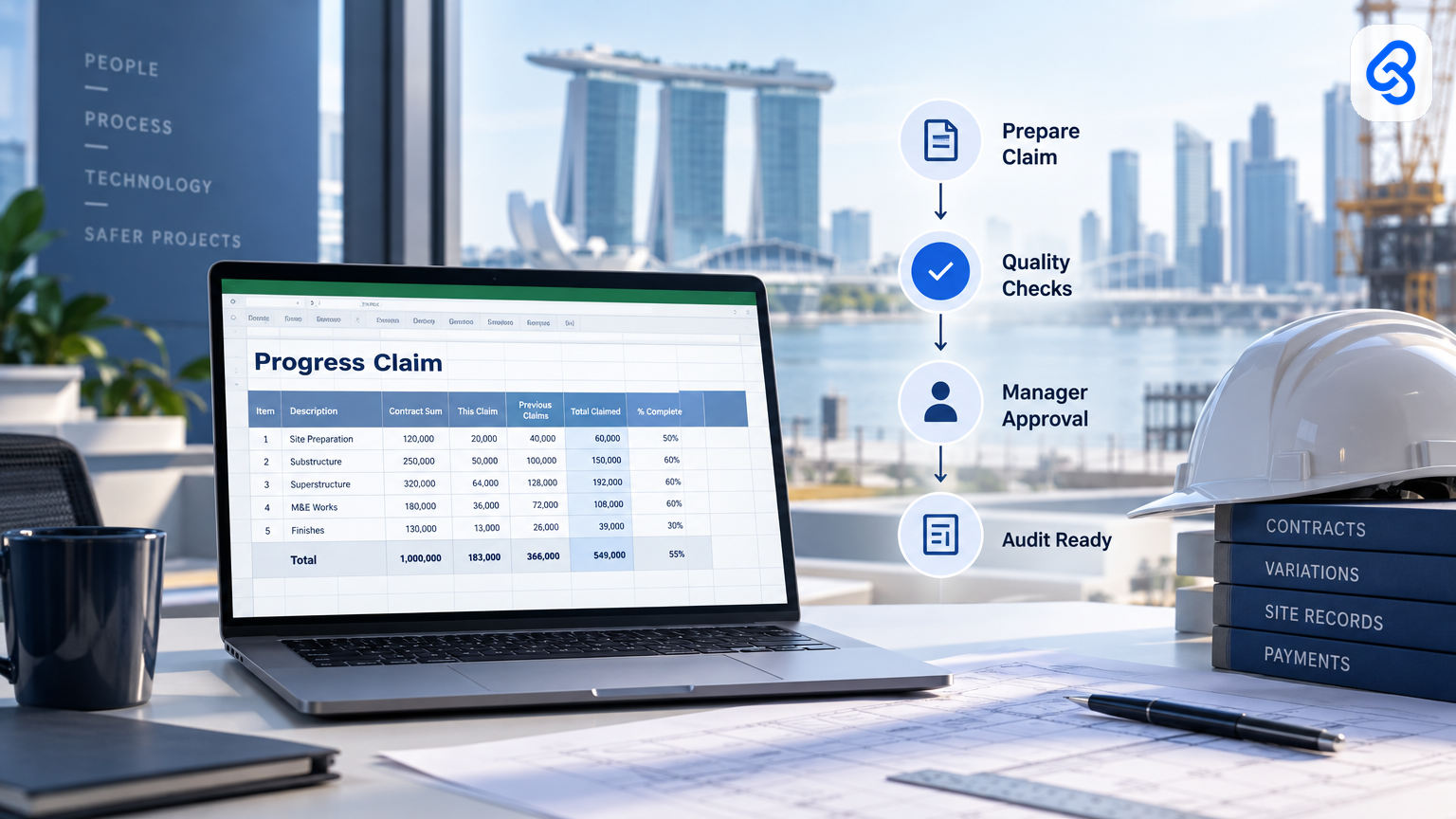
A progress claim template construction Excel users can adapt may help a project team prepare claims in a familiar tool. But a spreadsheet alone cannot confirm that the work matches the contract, that supporting documents are complete, or that the right person approved the amount.
For Singapore business leaders, the useful question is not only which columns to add. It is how to make the claim process traceable, keep human judgement in the right places, and decide when the workflow has outgrown a spreadsheet.
This guide covers a practical spreadsheet structure, common controls, and an illustrative workflow using Google Sheets and Apps Script. It treats the spreadsheet as one part of a governed process, not as a substitute for project or financial approval.
What should a construction progress claim template include?
A useful progress claim template records the project, claim period, work completed, amounts claimed, supporting evidence, and approval status. It should also show how each line relates to the agreed scope or schedule of values, so a reviewer can check the claim without reconstructing it from scattered messages.
Start with fields that help someone identify and review the claim:
- Project name and internal project reference
- Client and contractor details
- Claim number and claim period
- Contract or agreed schedule reference
- Work item, location, or milestone
- Agreed value and previous amounts claimed
- Current period amount and cumulative amount
- Retention or other contract-based adjustments, where applicable
- Supporting document references
- Prepared by, reviewed by, approval status, and dates
Keep the calculation logic visible. For example, show previous claims, the current claim, and the cumulative amount in separate columns. Do not hide key formulas in distant sheets or ask reviewers to trust a total without seeing how it was calculated.
Use the contract and the company's agreed process to decide which fields and calculations apply. A template is a working record, not legal advice or a replacement for the contract. If your team needs a starting point, see Lynqra's free progress claim template in Excel, or browse free templates for Singapore ID and renovation firms.
How do you use a progress claim template in Excel safely?
Use Excel safely by separating data entry from formulas, checking inputs before submission, and recording who prepared and approved each claim. Keep the original evidence with a clear reference, protect calculation cells from accidental edits, and store each submitted version so a later change does not erase the review history.
A practical setup can include three tabs:
1. Claim details: Project, client, claim period, and people responsible.
2. Claim lines: Work items, contract references, previous claims, current amounts, and evidence links or filenames.
3. Review log: Review date, reviewer, decision, comments, and any requested correction.
Add simple checks where they can catch common mistakes. Flag missing project references, blank evidence fields, duplicate claim numbers, or a cumulative claim that does not match the line-level figures. Label formula cells and use input validation for fields with a defined set of choices, such as status.
Protecting a sheet can reduce accidental edits, but it does not replace access controls or a proper record of approvals. Store the workbook in a location with appropriate permissions. Keep one submitted copy for each claim, and make corrections through a new version or a recorded amendment rather than silently changing an already approved file.
A reviewer should be able to answer three questions from the record: what is being claimed, what evidence supports it, and who approved it? If the workbook cannot answer those questions quickly, improve the process before adding automation.
When is a spreadsheet no longer enough?
A spreadsheet may stop working well when several people edit different copies, approval comments sit in chat, or staff have to re-enter the same claim details into another system. The warning sign is not the number of rows. It is when the team cannot reliably tell which version is current or who authorised it.
Look for these signs:
- Staff copy information between spreadsheets, email, and accounting records.
- A claim waits because nobody knows who should review it next.
- Supporting files arrive under inconsistent names or without a project reference.
- Managers cannot tell whether a claim is a draft, under review, approved, or submitted.
- Formula changes or manual overrides lack a recorded reason.
- The same claim needs repeated correction because different staff use different rules.
A spreadsheet may still suit a small, stable process with clear ownership. Improve its controls first. If the team needs several people to work through a defined review path, consider a workflow that keeps claim data, evidence, and decisions together.
Singapore SMEs can use the IMDA SMEs Go Digital programme to explore digital solutions and support for business needs. For sector-specific digital guidance, check the IMDA Industry Digital Plans. These official resources can help frame a digitalisation decision; they do not determine which process or tool fits a particular company.
How can you automate a progress claim review without removing human approval?
Automate the handoffs and checks that follow clear rules, but leave decisions about disputed work, evidence quality, and approval with people. A well-designed workflow can collect claim details, flag missing information, prepare a reviewer's queue, and record a decision without treating an automated check as approval.
An illustrative control pattern looks like this:
- The preparer submits a claim using defined project and claim fields.
- The workflow checks for required entries, duplicate references, and calculation exceptions.
- The reviewer receives the claim and its supporting evidence in one place.
- The reviewer approves it, rejects it, or requests a correction with a recorded reason.
- The process stores the decision and passes approved information to the next agreed step.
Set boundaries before automating. Decide which checks can run without judgement, who can approve claims, what happens when a check fails, and how the team records an exception. The system should make an exception visible, not quietly push it through.
If the workflow uses personal data, consider what information it needs, who can access it, and how the company handles it. The PDPC's overview of the Personal Data Protection Act provides official guidance on personal data protection in Singapore. A company should assess its own data practices rather than assume that a spreadsheet or automation tool handles compliance for it.
How this actually runs: a Tuesday morning claim review
An illustrative claim workflow can start with a project coordinator submitting a claim in Google Sheets. Google Apps Script can respond to a defined sheet event, check required fields, and send a review notice. The reviewer then makes the approval decision in the agreed process. The script moves information; a person remains accountable for approval.
Here is one way the steps could run:
1. Trigger: At 9:00 am on Tuesday, a coordinator adds a new claim row and changes its status to "Ready for review" in Google Sheets. The row contains a project reference, claim period, claim lines, amounts, and references to supporting files.
2. Check: A Google Apps Script function runs when the coordinator submits the row. Google documents Apps Script as a platform for integrating with and automating tasks across Google products. The script checks required fields and basic rules, such as whether the claim number already exists. It hands the result to the next step as a status and a list of any exceptions.
3. Route: If the checks pass, the script sends a notification to the designated reviewer with the project reference and a link to the claim record. If checks fail, it marks the row "Needs correction" and returns the missing or inconsistent fields to the coordinator instead.
4. Review: The reviewer opens the claim and checks the work items against the relevant contract or project records. They approve it or record a reason for requesting changes. That human decision becomes the status and review note for the next step.
5. Handoff: After approval, the coordinator uses the approved record to prepare the next agreed submission or accounting step. The spreadsheet keeps the claim reference, review result, and date together. It does not make a payment decision or determine whether the work meets the contract.
This example uses Google Sheets and Apps Script, not a claim-specific feature guaranteed by Google. The company would need to configure and test the sheet, script, permissions, notifications, and exception handling for its own process. See the Google Apps Script overview for Google's description of the tool.
Things break in ordinary ways. A coordinator may enter the wrong project reference, attach a file the reviewer cannot open, or submit a correction without changing the status. The workflow should return missing fields to the person who can fix them, give the reviewer a clear route to flag an exception, and keep the original review decision visible. If a script fails, the team needs a manual fallback and a way to identify claims that did not move forward.
What should you check before automating claims?
Before automating, map the current handoffs and agree on the rules that people already follow. A team should know where claim information starts, who checks it, what evidence they use, and what happens when they find a problem. Automating an unclear process can make confusion move faster.
Use this short decision check:
- Map: Where do claim details and supporting evidence come from?
- Name: Who prepares, checks, approves, and corrects each claim?
- Define: Which checks are objective, and which require professional judgement?
- Record: Where will the team find the current status, decision, and reason?
- Test: What happens when a reference is missing, a file is inaccessible, or a tool fails?
- Review: Who checks that the workflow still matches the company's process?
Lynqra's operating journey runs through Assess, Govern, Enable, Build, and Operate. For a claims workflow, that means first understanding the current process, setting approval and data controls, preparing the team, building around the agreed workflow, and reviewing how it performs in use. If you are weighing up a broader workflow change, read about progress claim automation for renovation and D&B firms and AI automation for interior design and renovation firms in Singapore.
Do not choose automation just because a process uses Excel. Start where handoffs, repeat entry, or missing review records create a real operational problem. Then decide whether a controlled spreadsheet, a configured business tool, or a custom workflow best fits the team.
Frequently asked questions
These answers cover common decisions about progress claim spreadsheets and automation. The right setup depends on the project's contract, internal approval rules, and the tools the business already uses. Treat the spreadsheet as a record that supports review, not as proof that a claim is correct or approved.
Is a progress claim template in Excel suitable for a small contractor?
It can suit a small contractor if the team has a clear process, a manageable number of reviewers, and a reliable way to store evidence and approved versions. Use visible calculations, separate review records, and clear ownership. If several people maintain different copies or approvals live only in chat, improve the workflow before relying on the spreadsheet as the main record.
Can Excel calculate the amount of a progress claim?
Excel can calculate amounts from formulas that the user sets up, such as totals from claim lines. The formulas do not confirm that the work matches the contract or that the figures are appropriate. Have someone check the calculation logic against the company's agreed process, and keep the underlying line items and supporting evidence available for review.
Should a progress claim be approved automatically?
A system can check objective conditions, such as whether required fields are present, but it should not treat those checks as approval. A person with the right authority should review the claim and record the decision. Keep exceptions visible, and make sure the process can stop and return a claim when details or evidence need attention.
When should a business automate progress claims?
Consider automation when staff repeatedly move the same claim information between tools, chase approvals manually, or struggle to find the current version and review history. First document the process and define who owns each decision. Then test whether a controlled spreadsheet or a more structured workflow solves the problem without hiding exceptions or removing human review.
Are grants available for a progress claim automation project?
Support and eligibility depend on the programme and the business's circumstances. Check current details directly with official channels, including Enterprise Singapore's business capabilities and support information, before making a funding decision. Do not assume a specific tool, project, or company will qualify based on a general description.
If you are deciding whether your claim process needs a governed workflow, start an AI readiness conversation with Lynqra or email mark@lynqra.com.