Defect Checklist Template Excel: A Safer Workflow
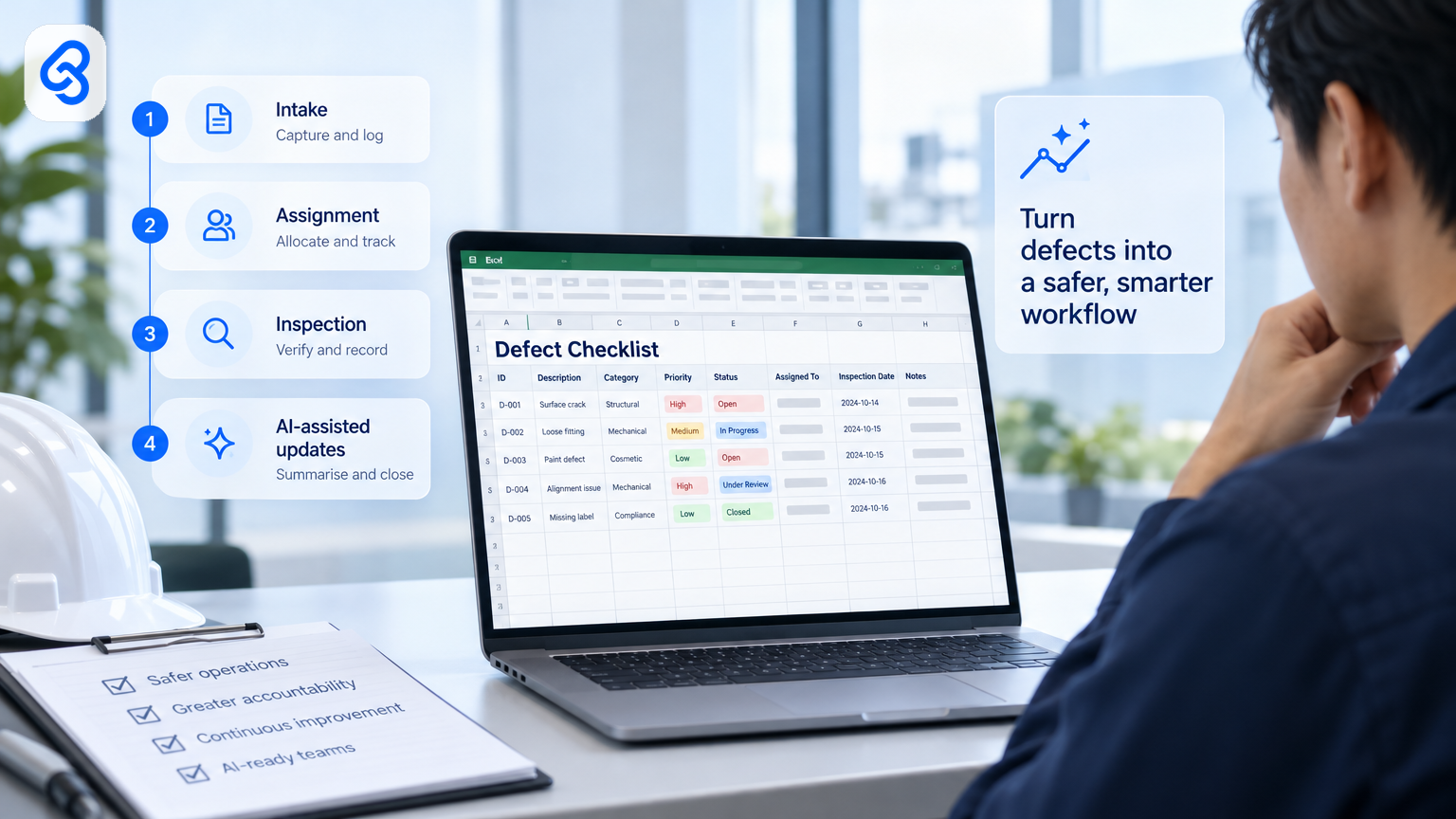
A defect checklist template Excel teams can use should do more than record a fault. It should show who reported it, where it is, who owns the next step and whether someone has checked the repair. That matters on a Singapore renovation or construction job, where updates may arrive through site conversations, photos and messages as well as spreadsheets.
A spreadsheet can make this work visible, but inconsistent labels, overwritten records and unreviewed AI suggestions can create confusion. This guide sets out a practical checklist structure and a four-gate control pattern: Capture, Validate, Assign and Verify. It also walks through an illustrative workflow using named tools. The example is not observed client evidence.
What should a defect checklist template in Excel include?
A useful checklist gives each issue one identifiable record, a clear owner and a next action. Include enough detail for someone who was not at the site to understand the problem and follow it to closure. Keep fields consistent, but avoid making the form so long that staff avoid completing it.
A practical starting structure:
- Defect ID: A unique reference for the issue.
- Project and location: Site, unit, room or specific area.
- Reported date and reporter: Who raised it and when.
- Description: A concise account of what is wrong, without guessing at the cause.
- Photo or evidence reference: A file name or location the team can access.
- Category and priority: Agreed categories and a short priority guide.
- Owner and target date: The person responsible for the next action and the date your team expects it.
- Status: For example, New, Needs details, Assigned, Rectification in progress, Ready for inspection, Rework required or Closed.
- Inspection outcome: Who checked the work, when they checked it and what they found.
- Closure evidence: A note or photo reference supporting the decision to close.
Keep the original report separate from later updates. If someone changes the description after a site inspection, preserve what the reporter first recorded and log the later finding in an update field or history tab. That helps managers see how the issue changed.
Lynqra's Free Defects List Template (Excel) is a starting point for this kind of record. Teams working across interior design and renovation can also browse free templates for Singapore ID and renovation firms.
How does the four-gate control pattern work?
Use the four gates to make responsibility clear at each stage. A record should not pass to the next gate until its required information or decision is present.
1. Capture: Record what was reported, where it was found, who reported it and any evidence reference. Do not infer a cause from a short description or photo.
2. Validate: Check that required fields are present, the location is understandable and the entry is not an obvious duplicate. Return incomplete or uncertain records for human review.
3. Assign: A responsible person confirms the category, priority and owner. AI may suggest a category or draft a summary, but it does not assign work or approve a cost.
4. Verify: An appropriate person records the inspection outcome and evidence. Close the record only after the required check is complete. If the work fails, keep the same record open or reopen it with a new action.
This pattern gives the team a simple stop rule: missing information, uncertain interpretation or failed inspection means the record does not advance. It can be applied in Excel with dropdowns and protected fields, or in a connected workflow with review steps.
How do you make the checklist reliable across a team?
A checklist becomes reliable when everyone uses the same labels and understands who can change each field. Agree on reporting, assignment, inspection and closure rules before automating anything. A spreadsheet with consistent records is easier to review than one with elaborate formulas but unclear ownership.
Agree on these operating rules:
- One row represents one defect, not a whole room or a bundle of unrelated work.
- The reporter records what they can see. An assessor confirms the cause or technical interpretation.
- The person doing the rectification does not close the record alone if your process requires an independent inspection.
- Staff update the existing record instead of creating a second row for the same issue.
- Only agreed values appear in status, category and priority fields.
- Every open item has an owner or a recorded reason it remains unassigned.
Use dropdown lists for fields such as status and category. Lock formula cells and identifier fields if accidental edits could break sorting or reporting. Give the team one place to store the working file, with access based on job responsibilities. If staff use separate copies on personal devices, it can become difficult to tell which version contains the latest decision.
Set a review rhythm that fits the project. For example, a project lead might scan overdue and unassigned items during a regular site review. Someone should own that review, and the team should know what happens when an item remains open.
Singapore SMEs can consult IMDA's SMEs Go Digital guidance when exploring digital tools and support for digitalisation. Firms in sectors covered by an Industry Digital Plan can also check the IMDA Industry Digital Plans. These resources can inform a broader plan, but they do not replace the team's own process and risk checks.
Which checks should happen before a defect is closed?
Close a defect only when the record shows what the team fixed and who verified the result. A status change alone does not prove that the repair meets the required standard. The checklist should capture evidence and the decision that support closure, or show why the item needs more work.
Before closure, check:
1. Does the location match the original report?
2. Does the rectification note say what changed?
3. Has the appropriate person inspected the result?
4. Does the inspection record show Pass, Rework required or another agreed outcome?
5. Is there evidence the team can retrieve later?
6. If the defect failed inspection, did someone update or reopen the same record rather than start a disconnected one?
A defect may affect scope, cost or the timing of a claim, but the defect checklist should not silently replace those records. For separate workflows, see Lynqra's guides to a variation order template Excel workflow and a progress claim template for construction in Excel.
How can AI help without deciding whether a defect is real?
AI can help staff organise incoming information, but it should not decide whether a defect exists or whether work passes inspection. Use it for bounded tasks such as drafting a short summary or suggesting a category for a person to confirm. Keep the original evidence, label the suggestion as unconfirmed and require an authorised person to make the operational decision.
A sensible division of work looks like this:
- AI may suggest: A category based on the reporter's description or a concise draft summary.
- A person confirms: Whether the category fits, whether the description needs correction and who should own the work.
- A qualified person inspects: Whether the rectification passes the agreed inspection.
- The record retains: The original report, any AI suggestion, the human decision and the inspection outcome.
Do not let an AI-generated label trigger a costly instruction or close a defect automatically. A description such as "water mark by window" may need a site inspection before anyone can identify the source. Treat AI output as a prompt for review, not as evidence.
If reports include identifiable customer, employee or contractor information, consider your data protection responsibilities before sending that information to an AI service. The PDPC's overview of the Personal Data Protection Act is an official starting point for understanding Singapore's data protection framework. Check the service's data handling terms and set access rules that fit the information involved.
What does the workflow look like when it runs?
The following example shows one possible intake and review workflow using Google Forms, Google Sheets, Google Apps Script and Gmail. It is illustrative, not a claim about a Lynqra deployment or an observed client outcome. A team using Excel can apply the same gates with its own tools and controls.
1. Trigger: At 9:10 am, a site supervisor submits a Google Form with the project, location, description and reporter. They include a reference to a photo stored in a location the team is permitted to use. The form writes the response to a linked Google Sheet.
2. Validate: An installable form-submit trigger runs a configured Google Apps Script when the form response arrives. The script checks for required fields and assigns a unique defect ID if the entry passes those checks. Google describes its automation options in the Google Apps Script overview.
3. Route exceptions: If a required field is missing, the script marks the row "Needs details." It does not guess the location, identify a trade or assign priority. The record remains available for a person to correct.
4. Notify a reviewer: For a complete entry, the script can send a Gmail notification to the designated reviewer, if the script has been configured and authorised to send it. The reviewer checks the new record and searches for a possible duplicate before assignment.
5. Make the decision: The reviewer confirms the description and category, sets priority according to the team's rules and assigns an owner. The owner records rectification progress in the same row.
6. Inspect and close: A designated inspector records the outcome and evidence reference. If the work fails, they select "Rework required" and add the next action. If it passes, they record the inspection date and closure evidence before changing the status to "Closed."
The workflow can still fail if staff submit duplicate reports, use different names for the same location or provide a photo link that other team members cannot open. The reviewer check helps catch these issues before assignment. A script failure should leave the original report available for manual review rather than silently dropping it.
For an Excel-based process, keep the same control pattern: preserve the original report, validate required fields, route uncertain records to a person and record who approved closure. Choose tools based on where the team already keeps project information and who can support the workflow when it needs a change.
How should you choose between Excel and a more connected workflow?
Excel can suit a small team that needs a shared register and can maintain clear ownership. Consider a more connected workflow when staff repeatedly re-enter information, struggle to find the current record or need reliable handoffs between reporting, assignment and inspection. A tool change will not fix unclear responsibilities, so define the process first.
Ask these questions:
- Can everyone who needs the file access the same current version?
- Can the team find overdue, unassigned and reopened defects without manually rebuilding the view?
- Do project leads need to see changes as they happen?
- Does the team need to connect defect records to other systems or approval steps?
- Who will maintain the spreadsheet or workflow when staff, forms or project rules change?
If the team can answer these questions with a simple workbook and a named owner, start there. If not, document the failure points and assess the smallest change that addresses them. Enterprise Singapore lists business support in its resources for boosting business capabilities. Check grant details and eligibility against official channels before making a funding decision, since requirements can change and depend on the specific support scheme.
FAQ
Can I use an Excel defect checklist on a renovation project?
Yes. A shared Excel checklist can work when the team has one current version, agreed status labels and a named person who reviews open items. Give each defect its own record and keep the original report, rectification update and inspection result traceable.
Should I let AI assign defect priority automatically?
Not without a clear, tested rule and human review. A short description or photo reference may not provide enough context to judge urgency or responsibility. Label any AI priority as a suggestion and require an authorised person to confirm it before work plans change.
When should a team move beyond Excel?
Consider another workflow when staff cannot keep one reliable record, repeatedly re-enter information or miss handoffs between reporting and inspection. First identify the specific failure and who owns it. Then assess whether better spreadsheet controls solve the issue or whether the team needs a connected tool.
What is a safe first step for AI readiness?
Map one task from start to finish, including who enters information, who checks it and what happens when details are missing. Then decide whether AI can assist with a narrow, low-risk part of that task. Keep a person responsible for decisions that affect work, costs or inspection outcomes, and define a manual fallback before introducing the tool.