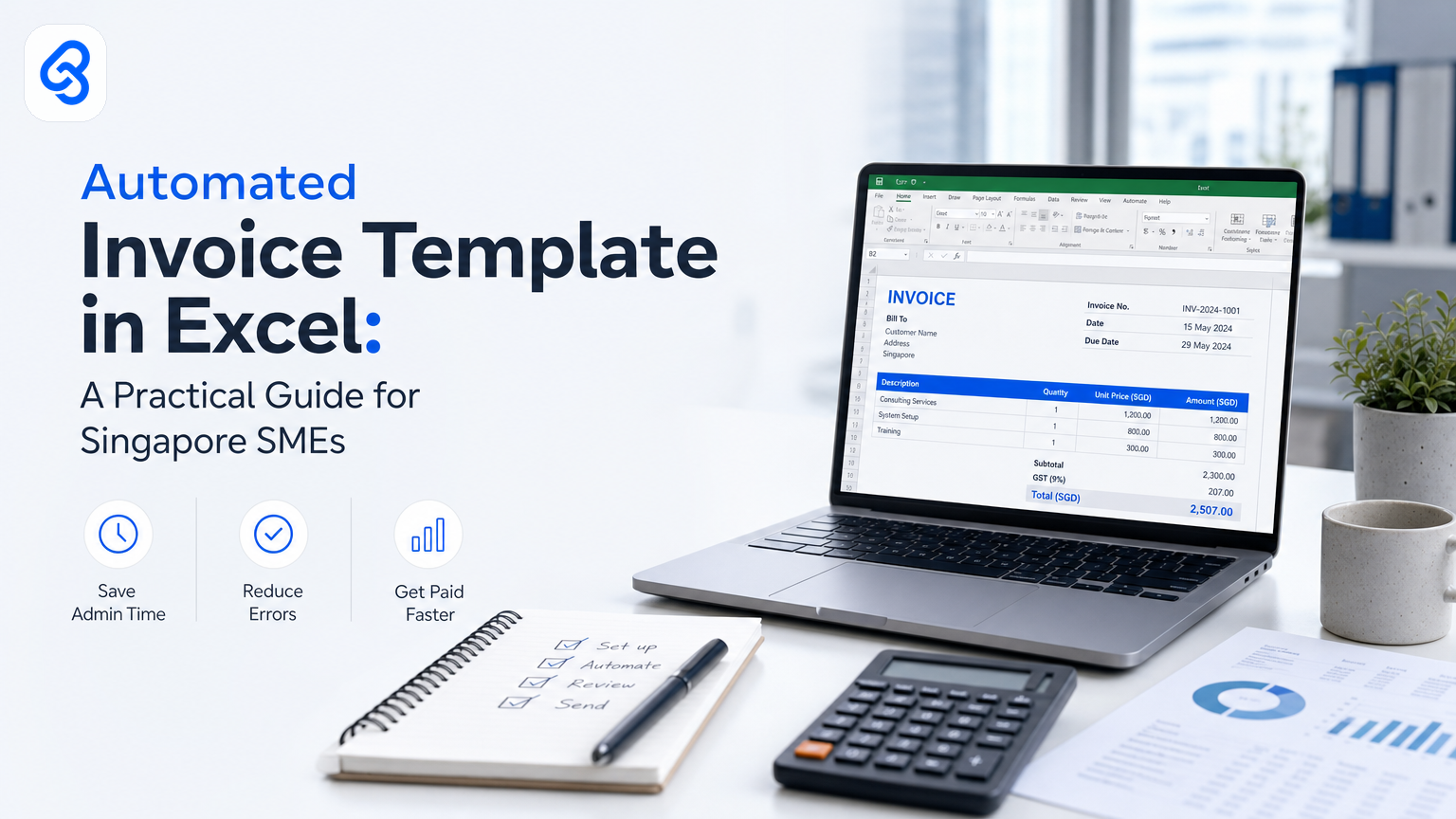
Most Singapore SME owners manage invoices the same way: open a template, fill in numbers, send. If you send 50 invoices a month, that's hours spent on data entry, formula updates, and payment tracking. An automated invoice template in Excel can cut that down, but only if you set it up correctly.
This guide walks you through what works, what doesn't, and when to add a layer of automation that handles the parts Excel alone can't.
Why Most Excel Invoice Templates Fall Short
A basic Excel invoice template saves you design time. You get rows, columns, maybe a formula or two for totals. But a template is passive. You still have to:
- Copy client details from your email or CRM into each invoice
- Manually track which invoices have been paid
- Update tax rates or pricing across dozens of old files
- Reconcile invoices against your accounting software
- Follow up on overdue payments without a system
For a trading company or distributor sending 20+ invoices weekly, this adds up quickly. Every week, the same data entry. Every week, one or two invoices get lost in follow-up.
An automated invoice template addresses some of these gaps. But it has limits.
What an Automated Excel Template Can Do Well
A proper automated invoice template in Excel includes:
Dropdown client selection. Instead of typing client names and addresses, you select from a dropdown list linked to a client database sheet. This cuts entry errors and speeds up invoice creation. The dropdown uses data validation and lookup formulas to pull client details automatically whenever you make a selection.
Automatic line-item calculation. Quantity times unit price calculates itself. Tax amounts update based on the rate you set. Subtotals and totals appear without manual math.
Sequential invoice numbering. A formula auto-increments your invoice number so you never duplicate or skip one.
Professional formatting. Your logo, company details, and layout stay consistent across all invoices. It looks complete without extra design work.
Simple filtering and reporting. You can sort invoices by client, date, or amount. You can sum totals by month or status (paid, unpaid, overdue).
These features save time on the creation and formatting side. For a small business sending 10-15 invoices per week, a well-built automated template in Excel can save 2-3 hours per week just on data entry and math.
The Real Bottleneck: Everything After Invoice Creation
Where Excel templates break down is what happens next.
Excel doesn't send invoices automatically. You have to attach the PDF and email it yourself. Excel doesn't track whether the client opened it, read it, or acted on it. Excel doesn't remind you when payment is due. Excel doesn't pull payment data from your bank account and match it to unpaid invoices.
These tasks sound small, but they aren't. When you move beyond the template to a real automation, you can:
- Generate and send invoices with one click
- Track delivery and open rates
- Flag overdue invoices automatically
- Match payments to invoices without manual reconciliation
- Send reminders on a schedule you set
- Pull reporting data without re-entering numbers
These aren't features of Excel. They require connecting Excel to other tools: your email, your bank, your payment processor, or messaging apps.
Building Your Own Automated Invoice Template: Step by Step
If you decide Excel is the right starting point, here's how to build a template that actually works:
Step 1: Create a client database sheet. In a separate sheet, list all your clients with columns for company name, contact person, email, address, tax ID, and payment terms. Keep this updated as your client list grows. This becomes the source of truth for dropdowns.
Step 2: Set up a data validation dropdown for client selection. In your invoice sheet, use Excel's data validation feature to create a dropdown in the "Client" field. Point it to your client database sheet so that when you select a client, their details (address, email, tax ID) auto-populate using VLOOKUP or INDEX/MATCH formulas. This removes manual data entry and errors.
Step 3: Use formulas for line-item calculations. Build rows for line items (product, quantity, unit price, tax rate, total). Use simple formulas: unit price times quantity equals line total. If your tax rate varies, let the tax amount recalculate based on that rate. Sum all line totals to get the subtotal, then add tax to get the grand total.
Step 4: Create an auto-incrementing invoice number. Use a simple formula like =MAX(previous_sheet_invoice_numbers)+1 so your invoice number increments each time you create a new invoice. Store a running record on a separate sheet so you never lose track of which number comes next.
Step 5: Use conditional formatting for payment status. Add a column for payment status (unpaid, partially paid, paid). Use conditional formatting to color-code these rows, so overdue unpaid invoices stand out in red. This makes it faster to spot which invoices need follow-up.
Step 6: Build a summary dashboard. Create one sheet that pulls key data from all your invoices: total outstanding, total paid this month, invoices due soon, which clients owe the most. Use SUMIF and other lookup functions to build this without manual updating.
These steps create an invoice system that Excel can handle. But there's still a gap: Excel doesn't connect to your email, bank, or accounting software. You still have to manage the handoff manually.
When to Move Beyond Templates
You know it's time to automate beyond Excel when you find yourself:
- Spending more than 4-5 hours per week on invoicing tasks
- Losing track of unpaid invoices and missing payment deadlines
- Struggling to reconcile invoices against your bank account or accounting software
- Sending the same follow-up message to multiple clients every month
- Copying invoice data into your accounting software by hand
- Worried about data entry errors in amounts or client details
An automated invoice system that sits on top of Excel (or inside it, using tools that connect to Excel) can handle these pain points. You keep Excel as your source of truth for numbers, but you add a layer that:
- Pulls client data from your CRM or contacts automatically
- Sends invoices via email on a schedule
- Tracks payment status against your bank
- Flags overdue amounts
- Pushes data to your accounting software so your books stay current
- Alerts you via email when payment arrives
This isn't a new piece of software. It's a workflow that runs on top of the tools you already use.
Automation Costs: Time, Money, and Risk
Building a proper automated invoice template takes time if you do it yourself. You need to:
- Map all your invoice data fields
- Test formulas to catch errors
- Build the client database and keep it current
- Design the layout
- Set up conditional formatting and dashboards
- Test the end-to-end flow with a few real invoices
For a solo founder, this might take 2-4 days. For someone without Excel experience, it's longer. And once it's built, you have to maintain it: update client details, fix broken formulas, adjust tax rates or payment terms.
The alternative is to pay someone to build it. A freelancer or agency might charge SGD 800-2,000 for a solid automated template. That buys you time, but you still own the maintenance. And you still have the follow-up gap that Excel alone can't close.
A third option is to use invoicing software. These tools handle invoicing end-to-end: creation, delivery, payment tracking, reconciliation, and even multi-currency support. They cost SGD 50-200 per month, but they eliminate the maintenance burden and close the follow-up gap. The trade-off is that your team has to move from Excel and email into a new platform.
The right choice depends on your business size, the number of invoices you send, and how much you're already spending on admin time.
Data Security and Compliance in Singapore
Before you build or deploy any automated invoice system, you need to think about data protection.
Your invoices contain customer details: names, addresses, payment information, order history. Under Singapore's Personal Data Protection Act (PDPA), you're responsible for how you handle this data. You must have explicit consent to store it, limit who can access it, and protect it from unauthorized access or loss.
The PDPC offers guidance on data protection responsibilities to help you understand your obligations under the PDPA. If you're automating invoices in Excel, make sure:
- Only authorized team members can access the file
- You use strong passwords and, if possible, role-based access
- You encrypt the file or folder, especially if it lives in cloud storage
- You have a backup process in case the file is lost or corrupted
- You delete old client data when it's no longer needed for business reasons
- You document your process so you can prove compliance if asked
If you add a third-party automation tool or platform, check their privacy policy and data processing agreement. Make sure they're also PDPA-compliant and won't share your customer data without your consent.
Government Support for SME Automation in Singapore
Singapore has several schemes to help SMEs invest in automation and digital tools. If the cost of building or buying an invoicing system is a barrier, you may be eligible for partial funding.
IMDA's SMEs Go Digital programme provides direct support to Singapore businesses adopting digital tools and solutions, including funding for software, CTO-as-a-Service consulting, and digital capability training. Depending on your needs, you might qualify for support with software adoption, digital capability training, or automation consulting. There's no guarantee of approval, but exploring this programme is worth your time if your planned investment fits the scope.
You can also explore Enterprise Singapore grants for broader automation projects that extend beyond invoicing to your whole business workflow.
Real Example: From Manual to Semi-Automated
One trading company was sending 40-60 invoices per week. Their process was:
1. Receive order details via email or WhatsApp
2. Manually enter client details and line items into a document
3. Print, sign, scan, and email the PDF
4. Track payment manually in a spreadsheet
5. Follow up on overdue invoices via voice calls
Each week, this took about 8 hours. Two invoices per month got lost in follow-up and had to be chased up again. Their cash flow was unpredictable because they didn't know which invoices were paid until they checked their bank account.
A custom automated template was built that pulled client data from a linked contact list, auto-calculated totals, and auto-incremented invoice numbers. When they marked an invoice as "sent", a script would email it automatically, log the send time, and flag it for follow-up if unpaid after 30 days. A simple notification system would alert them when payment arrived.
The result: substantial weekly time reclaimed, clearer payment visibility, and immediate visibility into cash flow. They still use spreadsheets for day-to-day data, but the manual handoff work was eliminated. You can read more about how invoice automation in Singapore helped this trading SME reduce weekly data entry and chasing.
This didn't require them to move to new software. It worked inside the tools they already used. And it addressed not just the template part, but the whole workflow around it.
Deciding: Template, Build, or Buy?
Here's a simple framework to help you decide:
Use a basic Excel template if:
- You send fewer than 10 invoices per week
- Your client details are stable (not changing much)
- You have the time to set up formulas and test them
- You don't mind manual email and payment follow-up
- Your accounting software can import Excel files directly
Build an automated template in-house if:
- You send 10-30 invoices per week
- You have someone with solid Excel skills on your team
- You want to own and control the system
- You're willing to maintain it (updating client data, fixing formulas, adjusting as the business grows)
- Your budget for external help is limited
Hire someone to build a custom template if:
- You send 20+ invoices per week
- You want a polished, professional result without learning Excel
- You have budget to spend on initial setup and occasional fixes
- You plan to keep the file long-term and want it done right
- You want to connect it to other systems (email, accounting software, bank data)
Move to invoicing software if:
- You send 50+ invoices per week
- You need integrated payment processing and reconciliation
- You want automatic reminders, multi-currency support, or tax compliance features
- You value not having to maintain the system yourself
- You're ready to invest in new software (SGD 50-200 per month) to close the follow-up gap
Bring in an automation partner if:
- You want invoice automation but also need to tackle accounts payable, quotation, or reporting workflows at the same time
- You don't have time or budget to learn or maintain a bespoke system yourself
- You want someone to stay involved as your business grows and your needs change
Many Singapore SMEs find that invoicing alone doesn't warrant a full software change, but when you combine invoicing with accounts payable automation, purchase order approval, and payment follow-up, a more integrated automation approach makes sense.
The Real Win: Time Back, Not Perfection
The goal of automating your invoice template isn't to build something beautiful. It's to buy back time. Time your team spends on data entry, formula updates, and manual follow-up is time they can't spend on selling, customer service, or growing the business.
A basic automated Excel template can save you 2-3 hours per week. A template connected to your email and bank data can save you 5-8 hours per week and improve cash flow visibility. The right approach depends on your invoicing volume, your team's skills, and how much of the surrounding workflow is also broken.
If invoicing is just one bottleneck in a broader set of manual admin tasks, it might make sense to step back and look at the whole flow: orders coming in, quotes going out, invoices being sent, payments being tracked, accounts being reconciled. Fixing all of those at once using automation that lives inside your existing tools is often faster and cheaper than fixing invoicing in isolation.
You can also explore our guide to AI document processing in Singapore if handling incoming invoices, forms, and data extraction is part of your challenge.
If you'd like to discuss what automation could look like for your business, we'd be happy to talk it through. We help Singapore SMEs identify their biggest bottlenecks and build automations that fit the way they actually work. Email us or visit our contact page to get in touch.